CONTROLS
Control all three LEDs
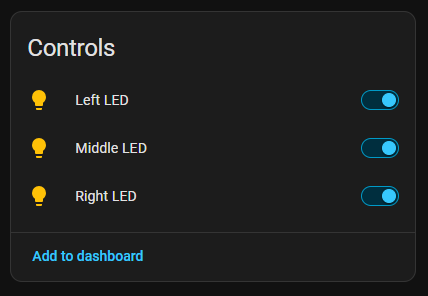
Each PWM LED appears as its own light entity, so you can switch it on or off and choose the brightness directly from Home Assistant.
SCOOPY · HOME ASSISTANT
See the controls and sensors Scoopy exposes in Home Assistant, then copy a ready-made automation and change the entity names.
Not in Home Assistant yet? Finish setup first →
WHAT SCOOPY ADDS
Scoopy exposes simple controls and events you can use in dashboards and automations. The Presence version adds its mmWave sensors too.
Each PWM LED appears as its own light entity, so you can switch it on or off and choose the brightness directly from Home Assistant.
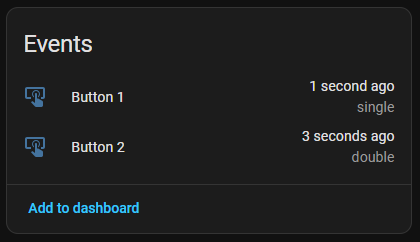
Button events report single, double and hold presses, ready to use as separate triggers in Home Assistant automations.
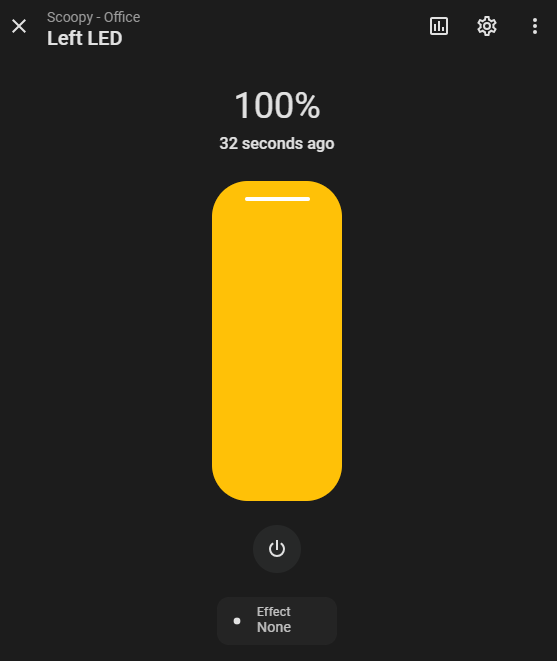
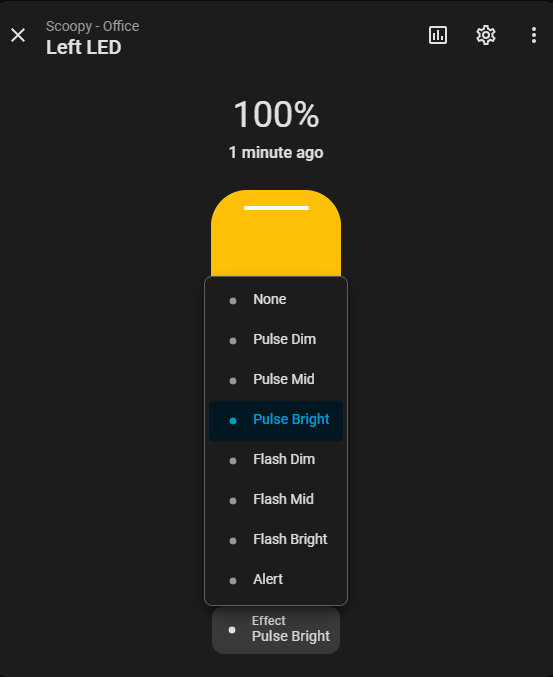
Open an LED entity to set its brightness or choose one of Scoopy’s built-in pulse, flash and alert effects.
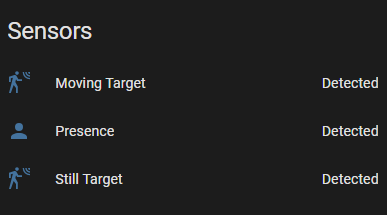
On Scoopy + Presence you’ll see moving target, presence and still target sensors from the mmWave module. On a standard Scoopy without the radar, these sensor entities may show Unknown — that’s expected and they can simply be ignored.
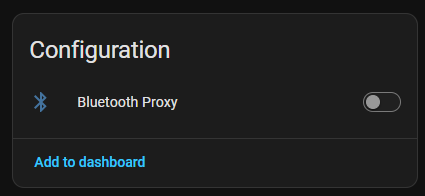
Turn on Bluetooth Proxy and Scoopy can listen for nearby Bluetooth Low Energy devices and relay them back to Home Assistant over Wi-Fi. It is off by default, so you only enable it if you want to use it.
BEFORE YOU COPY
Every blue field is editable. Enter a value once and every matching field — and every YAML example — updates automatically.
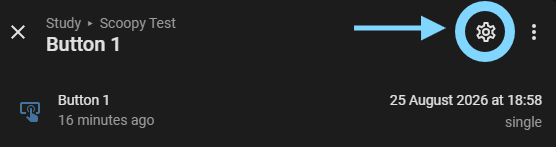
In Home Assistant go to Settings → Devices & services, open your Scoopy, then pick an entity such as Button 1. Select the cog and copy the full Entity ID. Paste that whole ID into any blue Your Scoopy field below.
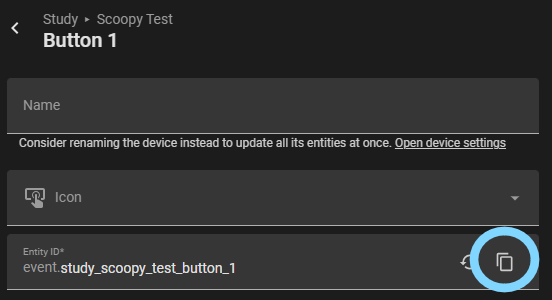
scoopy_test is assigned to the Study, Home Assistant may create an ID such as event.study_scoopy_test_button_1. That is normal. Paste the whole ID and this page strips the domain and Scoopy entity name to use study_scoopy_test in the examples.WHAT SCOOPY EXPOSES
event.<device>_button_1event.<device>_button_2Events: single, double, hold. Use Home Assistant's event.received trigger.
light.<device>_left_ledlight.<device>_middle_ledlight.<device>_right_ledIndividual dimmable LEDs with pulse, flash and alert effects.
light.<device>_led_patternControls coordinated effects across all three LEDs, including Circular Pulse. Turning an individual LED on stops the coordinated pattern first.
binary_sensor.<device>_presenceTurns on while Scoopy detects somebody in the room. Available on Scoopy with mmWave presence.
switch.<device>_bluetooth_proxyOptional switch for enabling or disabling Scoopy’s Home Assistant Bluetooth Proxy. The setting is remembered across reboots.
01 · START HERE
Button 1 starts the Circular Pulse. Button 2 stops it.
alias: Scoopy - Circular Pulse Demo
description: Button 1 starts the circular pulse, Button 2 stops it

triggers:
  # Scoopy Button 1 - single press
  - trigger: event.received
    target:
      entity_id: event.scoopy_xxxxxx_button_1
    options:
      event_type:
        - single
    id: pulse_on

  # Scoopy Button 2 - single press
  - trigger: event.received
    target:
      entity_id: event.scoopy_xxxxxx_button_2
    options:
      event_type:
        - single
    id: pulse_off

conditions: []

actions:
  - choose:
      # Button 1 -> start the coordinated Circular Pulse effect
      - conditions:
          - condition: trigger
            id: pulse_on
        sequence:
          - action: light.turn_on
            target:
              entity_id: light.scoopy_xxxxxx_led_pattern
            data:
              effect: Circular Pulse

      # Button 2 -> stop the pattern and turn the LEDs off
      - conditions:
          - condition: trigger
            id: pulse_off
        sequence:
          - action: light.turn_off
            target:
              entity_id: light.scoopy_xxxxxx_led_pattern

mode: restart
02 · BUTTON
Press Button 1 to turn a light on. Press it again to turn the same light off.
alias: Scoopy - Button 1 Toggle Light
description: Button 1 toggles a Home Assistant light on and off

triggers:
  # Scoopy Button 1 - single press
  - trigger: event.received
    target:
      entity_id: event.scoopy_xxxxxx_button_1
    options:
      event_type:
        - single

conditions: []

actions:
  # Works with Hue or any other light exposed to Home Assistant
  - action: light.toggle
    target:
      entity_id: light.your_light

mode: restart
03 · PRESENCE
Presence turns the light on immediately. Leave the room for 5 seconds and it turns off.
Increase the 5-second delay in the YAML if you want a slower switch-off.
alias: Scoopy - Presence Controlled Light
description: Presence turns the light on, 5 seconds with no presence turns it off

triggers:
  # Someone is detected -> turn the light on
  - trigger: state
    entity_id: binary_sensor.scoopy_xxxxxx_presence
    from: "off"
    to: "on"
    id: presence_on

  # Nobody detected for 5 seconds -> turn the light off
  - trigger: state
    entity_id: binary_sensor.scoopy_xxxxxx_presence
    from: "on"
    to: "off"
    for:
      seconds: 5
    id: presence_off

conditions: []

actions:
  - choose:
      - conditions:
          - condition: trigger
            id: presence_on
        sequence:
          - action: light.turn_on
            target:
              entity_id: light.your_light

      - conditions:
          - condition: trigger
            id: presence_off
        sequence:
          - action: light.turn_off
            target:
              entity_id: light.your_light

mode: restart
04 · ADVANCED
If the light is off, Button 1 turns it on at 100% during the day or 25% from 9pm to 7am. If the light is already on, Button 1 turns it off.
Change the times and brightness percentages in the YAML to suit your room.
alias: Scoopy - Time Aware Light Button
description: Button 1 toggles a light, using a dimmer brightness at night

triggers:
  # Scoopy Button 1 - single press
  - trigger: event.received
    target:
      entity_id: event.scoopy_xxxxxx_button_1
    options:
      event_type:
        - single

conditions: []

actions:
  - choose:
      # If the light is already on, turn it off
      - conditions:
          - condition: state
            entity_id: light.your_light
            state: "on"
        sequence:
          - action: light.turn_off
            target:
              entity_id: light.your_light

      # If it is 9pm-7am, turn it on dimly
      - conditions:
          - condition: or
            conditions:
              - condition: time
                after: "21:00:00"
              - condition: time
                before: "07:00:00"
        sequence:
          - action: light.turn_on
            target:
              entity_id: light.your_light
            data:
              brightness_pct: 25

    # Otherwise it is daytime -> turn it on at full brightness
    default:
      - action: light.turn_on
        target:
          entity_id: light.your_light
        data:
          brightness_pct: 100

mode: restart
05 · STATUS
At 10pm, if your alarm is still disarmed, Scoopy starts a gentle Heartbeat pattern. Arm the alarm and the reminder stops.
Adjust the reminder start/end times in the YAML if you want different hours.
alias: Scoopy - Alarm Reminder
description: Heartbeat at night while the alarm is disarmed

triggers:
  # Check automatically at 10pm
  - trigger: time
    at: "22:00:00"
    id: reminder_start

  # Re-check whenever the alarm state changes
  - trigger: state
    entity_id: alarm_control_panel.your_alarm
    id: alarm_changed

  # Stop any reminder at 5am
  - trigger: time
    at: "05:00:00"
    id: reminder_end

conditions: []

actions:
  - choose:
      # During reminder hours, show Heartbeat while the alarm is disarmed
      - conditions:
          - condition: state
            entity_id: alarm_control_panel.your_alarm
            state: "disarmed"
          - condition: or
            conditions:
              - condition: time
                after: "22:00:00"
              - condition: time
                before: "05:00:00"
        sequence:
          - action: light.turn_on
            target:
              entity_id: light.scoopy_xxxxxx_led_pattern
            data:
              effect: Heartbeat

    # Alarm armed, or reminder hours finished -> stop the pattern
    default:
      - action: light.turn_off
        target:
          entity_id: light.scoopy_xxxxxx_led_pattern

mode: restart
06 · STATUS LED
When a door, garage or other binary sensor is open, Scoopy’s middle red LED turns on. Close it and the LED turns off.
For most contact sensors, on means open.
alias: Scoopy - Door Open Status
description: Red LED stays on while a door or other sensor is open

triggers:
  - trigger: state
    entity_id: binary_sensor.your_door
    id: door_changed

conditions: []

actions:
  - if:
      - condition: state
        entity_id: binary_sensor.your_door
        state: "on"
    then:
      - action: light.turn_on
        target:
          entity_id: light.scoopy_xxxxxx_middle_led
        data:
          brightness_pct: 100
    else:
      - action: light.turn_off
        target:
          entity_id: light.scoopy_xxxxxx_middle_led

mode: restart
07 · ADVANCED
Button 1: press to toggle a fan, hold to open or close the blinds. Button 2: press for time-aware lighting, hold for full brightness.
The example uses 100%, 35% and 5% light levels; change those in the YAML if you want.
alias: Scoopy - Whole Room Controls
description: Fan, blinds and time-aware lighting controlled by Scoopy

triggers:
  # Button 1 - press -> fan
  - trigger: event.received
    target:
      entity_id: event.scoopy_xxxxxx_button_1
    options:
      event_type:
        - single
    id: fan_toggle

  # Button 1 - hold -> blinds
  - trigger: event.received
    target:
      entity_id: event.scoopy_xxxxxx_button_1
    options:
      event_type:
        - hold
    id: blinds_toggle

  # Button 2 - press -> time-aware light
  - trigger: event.received
    target:
      entity_id: event.scoopy_xxxxxx_button_2
    options:
      event_type:
        - single
    id: light_toggle

  # Button 2 - hold -> maximum brightness
  - trigger: event.received
    target:
      entity_id: event.scoopy_xxxxxx_button_2
    options:
      event_type:
        - hold
    id: light_full

conditions: []

actions:
  - choose:
      # Button 1 press -> toggle the fan
      - conditions:
          - condition: trigger
            id: fan_toggle
        sequence:
          - action: switch.toggle
            target:
              entity_id: switch.your_fan

      # Button 1 hold -> open closed blinds, otherwise close them
      - conditions:
          - condition: trigger
            id: blinds_toggle
        sequence:
          - if:
              - condition: template
                value_template: >
                  {{ state_attr('cover.your_blind', 'current_position') | int(0) == 0 }}
            then:
              - action: cover.open_cover
                target:
                  entity_id: cover.your_blind
            else:
              - action: cover.close_cover
                target:
                  entity_id: cover.your_blind

      # Button 2 press -> toggle the room light
      - conditions:
          - condition: trigger
            id: light_toggle
        sequence:
          - if:
              - condition: state
                entity_id: light.your_light
                state: "on"
            then:
              - action: light.turn_off
                target:
                  entity_id: light.your_light
                data:
                  transition: 1
            else:
              - choose:
                  # 5am-6:30pm -> bright
                  - conditions:
                      - condition: time
                        after: "05:00:00"
                        before: "18:30:00"
                    sequence:
                      - action: light.turn_on
                        target:
                          entity_id: light.your_light
                        data:
                          brightness_pct: 100
                          transition: 1

                  # 6:30pm-10pm -> softer
                  - conditions:
                      - condition: time
                        after: "18:30:00"
                        before: "22:00:00"
                    sequence:
                      - action: light.turn_on
                        target:
                          entity_id: light.your_light
                        data:
                          brightness_pct: 35
                          transition: 1

                  # 10pm-5am -> very dim
                  - conditions:
                      - condition: or
                        conditions:
                          - condition: time
                            after: "22:00:00"
                          - condition: time
                            before: "05:00:00"
                    sequence:
                      - action: light.turn_on
                        target:
                          entity_id: light.your_light
                        data:
                          brightness_pct: 5
                          transition: 1

      # Button 2 hold -> force full brightness
      - conditions:
          - condition: trigger
            id: light_full
        sequence:
          - action: light.turn_on
            target:
              entity_id: light.your_light
            data:
              brightness_pct: 100
              transition: 0.5

mode: restart
WANT TO CHANGE SOMETHING?
Use single, double and hold presses for different jobs. Point the actions at lights, fans, blinds, scenes or anything else Home Assistant can control.
OPTIONAL BLUETOOTH PROXY
Scoopy can act as a Home Assistant Bluetooth Proxy, listening for nearby BLE devices and passing them back to Home Assistant over your Wi-Fi network. The feature is optional and starts switched off.
In Home Assistant go to Settings → Devices & services, open your Scoopy and find Bluetooth Proxy under Configuration. Turn the switch on. Scoopy remembers your choice across reboots.
Scoopy uses passive BLE scanning for nearby advertisements and provides one active connection slot for integrations that need to connect to a Bluetooth device. If Home Assistant disconnects, scanning stops and resumes automatically after it reconnects when the switch is still enabled.
Go to Settings → Bluetooth → My network → Adapters. Scoopy should show Passive scanning · 0/1 connections. The Advertisement Monitor lets you see devices being heard through Scoopy; 1/1 simply means a device is currently using its connection slot.
HLK-LD2410_xxxx, so Home Assistant may discover it through Scoopy. Scoopy already reads that same radar directly over UART for its normal presence entities, so adding the separate LD2410 BLE integration is optional and will largely duplicate the same sensor.configuration.yaml so every small distance change is not stored. That is a more advanced Home Assistant tweak though, so it is beyond the scope of this guide :DFIRMWARE UPDATES
Scoopy can receive firmware updates directly through Home Assistant. When a new release is available, Home Assistant shows it under Firmware Update on your Scoopy device.
When a newer Scoopy firmware release is available, Home Assistant compares your installed version with the latest release published by Nice Hat Thanks.
Open the Firmware Update entity and choose Install. Scoopy downloads the update over Wi-Fi and reboots automatically.
Your Wi-Fi credentials, Home Assistant connection and device identity are preserved, so your existing entities and automations continue to work after the update.
MOVING HOUSE? CHANGING WI-FI?
You do not need to reflash anything. A factory reset clears Scoopy’s saved Wi-Fi details and returns it to setup mode using the two physical buttons.
Press and hold both physical buttons together for 10 seconds.
During the final part of the hold, the middle red LED flashes quickly to warn that a factory reset is about to happen.
Scoopy clears its Wi-Fi credentials, the red LED begins pulsing again, and the scoopy-XXXXXX setup network returns.
NEED MORE HELP?
If setup or an automation is giving you trouble, the Scoopy project is on GitHub and you can also get in touch directly.
Open the Scoopy repository →Contact Nice Hat Thanks →A SMALL TECHNICAL NOTE
Scoopy uses ESPHome’s local Wi-Fi setup flow. Your Wi-Fi details are sent directly to the Scoopy you are connected to — there is no Scoopy cloud account involved in onboarding.